TonalBrain Mix Quick Guide · 2 of 8
Your first mix
To get your first mix, put TonalBrain Mix on your main tracks, click ANALYSIS, play the busiest part of your song, then click GET SUGGESTIONS.
Prepare
- 1Put TonalBrain Mix on each important track: for example kick, snare, bass, lead vocal and the main instruments. You can use up to 24 tracks. The more tracks, the better the result.Result: Each track shows as a tab at the left of the plugin window.
- 2Open one plugin window and close the others. You can edit all tracks from one window.
- 3Make sure that each track has an instrument name, for example “Kick” or “Lead Vocal”. Click the track-name field at the top to select an instrument from the list. A name like “Audio 12” does not tell the plugin what to mix.
- 4Type the genre of your song in the genre field, for example “pop”.
Tip
If a name or the genre is missing, the plugin asks for it when you start. You can also answer there.
Capture and get suggestions
- 1Click ANALYSIS.Result: The plugin shows WAITING FOR PLAYBACK.
- 2Play the busiest part of your song in your DAW, usually the chorus or the drop.Result: The plugin records 10 seconds of all tracks, then shows “1 section captured. Ready to mix.”
- 3Optional: click + and play a different part, for example the verse. See Mix the whole song.
- 4Click GET SUGGESTIONS.Result: After approximately one minute, the plugin sets EQ, compression and effects on all tracks and shows “AI parameters applied!”.
- 5Play your song. Click BYP ALL to hear your mix with and without TonalBrain Mix.
Note
During the 10 seconds of a capture, the plugin switches its processing off so that it hears your original tracks. Do not stop playback during a capture.
Note
If the plugin shows “Sidechain routing needed”, see Sidechain setup.
The plugin window
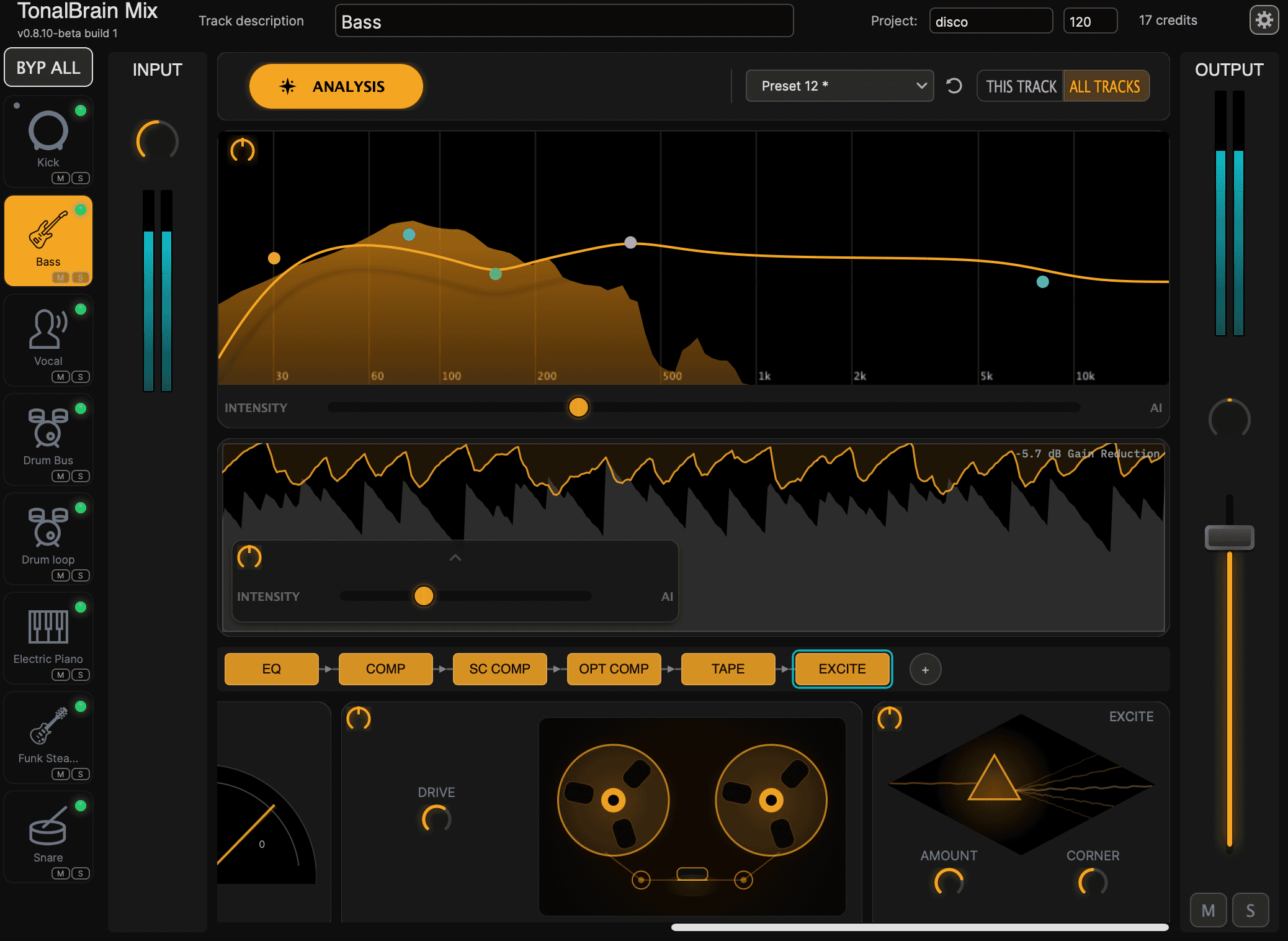
- 1Track name. Click to select an instrument.
- 2Your credits and the days left on your pass.
- 3BYP ALL: hear all tracks without TonalBrain Mix.
- 4Track tabs. Click a tab to show that track.
- 5ANALYSIS: capture and get suggestions.
- 6Presets. See Presets, edits and intensity.
- 7EQ. Drag a point to change it.
- 8EQ INTENSITY: less or more EQ.
- 9Compressor and its INTENSITY.
- 10Effects chain. Click + to add an effect.
- 11Output fader and pan of the track.
The effects
Each track gets an EQ and a compressor. The plugin adds these effects only to the tracks that need them:
| Effect | What it does |
|---|---|
| TAPE | Warmth and glue of analog tape. |
| STEREO | Makes a stereo track wider. The low end stays in the centre. |
| DE ESS | Reduces harsh “s” sounds. |
| SC COMP | Makes a track go down when a different track plays, for example the bass on each kick. |
| OPT COMP | Smooth, slow levelling, for example on a vocal or a bass. |
| EXCITE | Adds air and presence to the high frequencies. |
You can change every setting. To remove an effect, right-click it in the chain and click Remove. To change the order, drag it left or right. Double-click a knob to reset it.
Still stuck? Contact us.